Tuesday, 26 November 2013

History About Android Versions InfoGraphic

History About Android Versions 

Info Graphic

Android achieved some remarkable stones in last few years.You Might be Thinking Android is Google product yes its true but from 2005. Actually Android was founded by Andy Rubin,Rich Minner,Chris white and nick sears in year 2003.At first Android was developed for digital cameras as third party apps then shifted to mobiles.Google purchased android in 2005 as said above.Then after 2 years i.e on November 5th 2007 Google officially announced the development on Android OS.
History-of-Androidv5b.png++975%C3%973574+


Android Version till Now:

  • Android 1.5                         CupCake
  • Android 1.6                         Donut
  • Android2.0/2.1                     Eclair
  • Android 2.2                         Froyo
  • Android 2.3                         Ginegrbread
  • Android 3.0/3.1/3.2              Honeycomb
  • Android 4.0 and Later           Icecream Sandwitch
  • Android 4.1                          Jeally bean
  • and Finally Android 4.4         Kitkat
Interesting information right? Yes I feel
If you Want some more amazing facts and History about Android then Check below Info graphic developed by startapp

History-of-Androidv5b
 So Hows it? DO share your experience in the below comments and dont forget to share this with your friends on Social media.
How to Protect My Facebook Photos Online

How to Protect My Facebook Photos Online

Facebook takes utmost care of their users but we also need to take some care about our privacy.As all know that a coin has two sides the Facebook has also got both the good and bad people on it! I strongly say Think before you share anything on Facebook because some people on Facebook are making use of the images of other Facebook users for the bad things on online and offline usage.Continue reading..!!!!
protect+facebook+pics
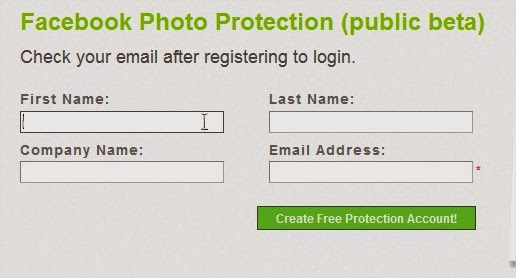
The only thing we can do to protect our images on Facebook is setting the album privacy to only our friends!. But what about the people who had so many people as their friends! Watermark is a simple way to stop others from using your images for bad things.
Check: Facebook Tips and Tricks
You might me be getting a doubt "Will this stop spammers and bad people from using images?"the answer to your doubt is It can't stop them the spammers and bad people from using your images but you can stop to some extent. Because most of the spammers want bulk amount of images downloaded which are not watermarked and then use them for their work,as they don't want to waste time on editing your images!. This way we can stop the spammers from using the images to some extent.

Here we are going to show you how to watermark your Facebook images with DMCA

What is DMCA?

DMCA is the short-form of Digital Millennium Copyright Act. DMCA helps the original copyrighted holder to protect their work from being  used by the other people.The work can include blog content, videos, pictures, websites, games.
DMCA also lets you to file a case in complete legal way against those who copied your work!

Here is How to use DMCA tool to watermark the images.

  • First register an account with DMCA from Here.
register
  • After completion of registration Facebook watermark tool from Here.
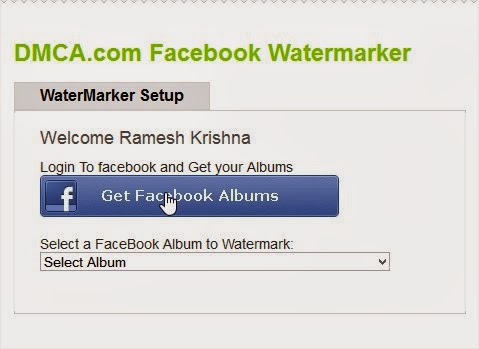
  • Now Authorize DMCA to get the images from your Facebook profile by clicking on "Get Facebook Albums'
get+fb+albums
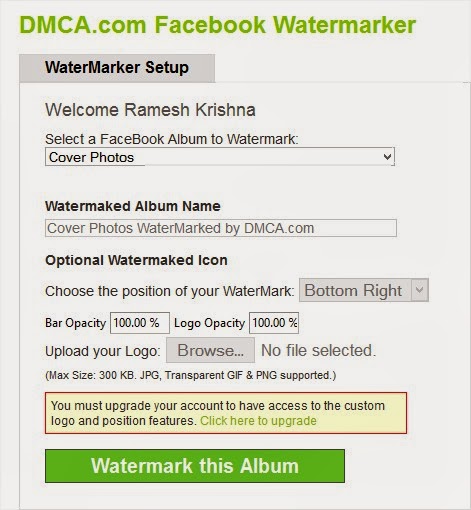
  • After grating the access to get the images, select the albums from dropbox menu.
albums
  • Hit on Watermark this Album.and you are done. that's it all your images will be watermarked with DMCA logo.
  • In order to remove the DMCA logo and add your own logo you need to upgrade your plan to monthly to yearly.

How to Avoid Phishing Attacks and Protect your Passwords Online

How to Avoid Phishing Attacks and 

Protect your Passwords Online


Many times we receive an email saying" you have won 10000$!" or you receive a text message on your phone which says " your number won in the lucky draw contest!" Many of us believe it and so we do everything they ask us to do, like giving away passwords and bank account numbers. But by the time we get to know that our passwords have been hacked, it is too late. This serious problem is termed as "phishing" which cyber criminals use to attack common  users.

What is Phishing?

phishing
Phishing is a technique used by the cyber criminals who try to steal your important and private information by pretending to be someone or something you trust. For example, you get an email which seems to have been sent by your bank  asking for your account details, but in fact it is indeed sent by a phishing expert. Though the email seems very real, it is actually sent by a cyber criminal to steal your account passwords. Phishing techniques have become extremely dangerous and sophisticated these days, since they accurately replicate the legitimate trusted source. For example, they will have a real logo, will use the same font and will seem to come from a real email address.

Typical forms of phishing attacks:

1.Account upgrade, system maintenance, software crash or some other mundane reason.
2. Sms text message that seems as if your bank or relative or friend is trying to get in touch with you.
3. Instant message asking you for confidential information.
4.Private message on Facebook containing a link that may take you to a page that looks like a log-in screen for facebook, but actually is a fake log-in screen.

fb+phish
Here in the picture you can see a Facebook phishing attack. Check the URL bar, it is not the Facebook.com
There are a few simple things you can keep in mind in order to avoid the phishing attacks:
  • Your bank or credit card company shall never ask for your password under any circumstances.
  •  If the email you have received contains a link, do not blindly click on it. It can be a fake link which may lead you to a fake log-in screen or executes some other phishing attack. Before you click on the link, you can find out where it is going to take you by holding your mouse over it for a few seconds and looking at the status bar of your browser.Below one is example of phishing.
PayPalPhishing.
  • You may receive an email with a link which looks real. Even if you hover your mouse over it, it replicates a trusted website. For example, Look at the following web address- https://www.facebook.com@www.abs123.com . At first glance this may look like the facebook link, but in reality it will direct you to a completely different address which begins separately after the @sign.
facebook-phishing-email
  • Always check for "https" in the url address bar of your browser, before you enter any confidential information on website. Typically, only trust worthy websites use "https" and phishing websites use "http".
  • Make sure that you read the url adress properly. Watch out for websites with spellings that are similar to the actual website. "online.citibenk.com" instead of "online.citybank.com". Cyber criminals are known to register website domain names with a spelling similar to a trusted website.
  • A simple way to detect a phishing email is, you can carefully look for your full name mentioned in the email. Usually, the cyber criminal doesn't know your full name and may contact you by referring you with Sir, or your email address.
  • Most popular browsers like google chrome, mozilla firefox maintain a list of known phishing webistes and warn you when you are about to visit any phishing website that appears in their database.
warning+screen
  • If you receive a link and are not sure whether it is safe to click on it or not, you can however check if it is a phishing attach by submitting the website address to a site called PhishTank. This website maintains a comprehensive list of known phishing websites and provides a quick review if the website is trust worthy or not.
phishtankwebpage
  • As you can see, the webpage of Phish Tank provides a bar, to specify any suspected link in it and checks for it. If you sign in or register with the website, you can submit any phishing link to the website and soon it updates the fake link. 
sample+url
  • Here, I have given a link in the bar, to check if it s a phishing attack. We click on the IS IT A PHISH button.

phish+detected
  • Phishtank has detected the link as a phish. It also provides a rating for 100%. If it is more than 50% you should not enter into the link.

Other solutions:

There are commercial anti-phishing software tools available that provides you protection against phishing attacks. For example McAfee's SiteAdvisor Live is a product that allows you to identify and protect yourself from risky websites. You can buy it online from its website.
mcafee
Most importantly, if you have never opened an account with a particular bank and they email you, then it probably is a phishing attack. No matter how tempting their offer might be, do not click on any of their links.

How to Edit PDF Files Online for Free - Top 5 Websites

How to Edit PDF Files Online for Free - 

Top 5 Websites

We often download PDFs. Be it textbooks, notes or whatever. The problem comes when we want to edit a PDF file or when we want to create a PDF ourself. There are a few websites, which work as PDF editors and PDF creators, where we can edit or create PDFs online. Here I would like to present a few best PDF editors which are extremely easy and time saving.
edit-pdf-online.jpg

Here are Top 5 best sites to edit your PDfs online for free.Just follow below procedure and edit your files easily.

1.Pdfescape editor:

 Pdfescape is a popular website to edit PDF files. I will be giving a few steps to follow in this process.
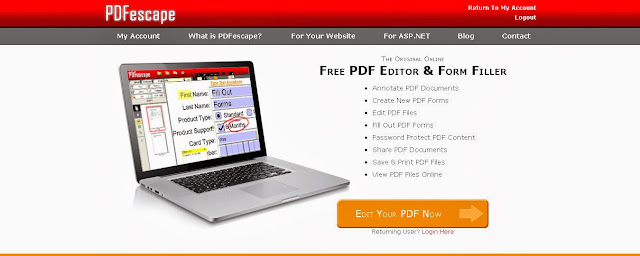
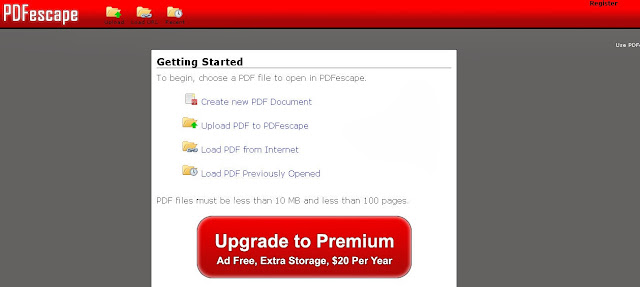
  • Open the official website of the Pdfescape here.
pdf+escape+web+screen
Click on Edit Your PDF Now. It will direct you to the options page. 
  • Click on Upload PDF to PDF escape. This will allow you to edit an existing PDF file in your system. Let me show an example.
pdf+editor+options.
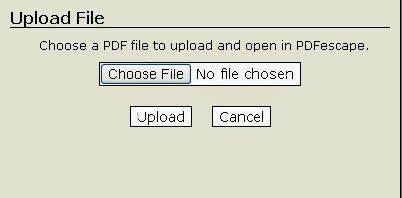
  • Here, click on Choose File and select any PDF file which you want to edit.
pdf+editor+escape+options
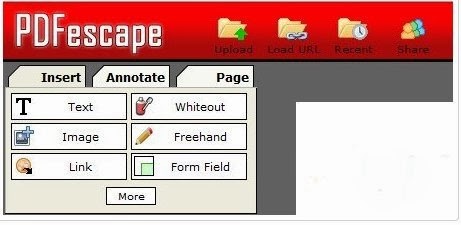
  • Here there are options, where you can select the stream to be edited. I selected text in the options given. 
pdf+options+clearer
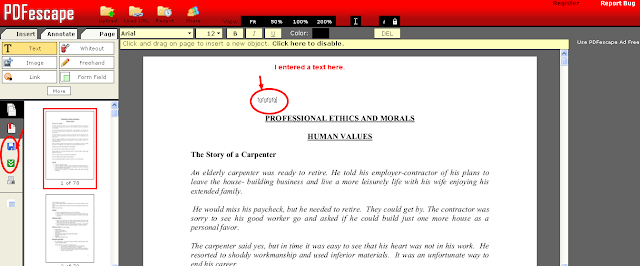
Here is just a sample text I gave in the PDF, in order to edit it. I just placed the cursor on the file and typed a text. In order to save the edited file, I clicked on the save document option in the left side as directed in the picture.
edited+pdf
This website is rated as one of the best, which provides almost all the tools to edit any PDF file. It is easy to edit and also a fast process.

2.Pdffiller : 

PDF filler is another website which provides large streams of editing. It has all the features same as Pdfescape. It also has signature option where you can add your signature on the edited or created PDF files. This process many not be completely accurate as Pdfescape but is efficient enough in working and saving the document.
Here you can find options such as View,Font,Signature and picture etc, and many more to editing options.

Check: How to Create Wifi Hotspot in Windows PC

3. PDFZEN: 

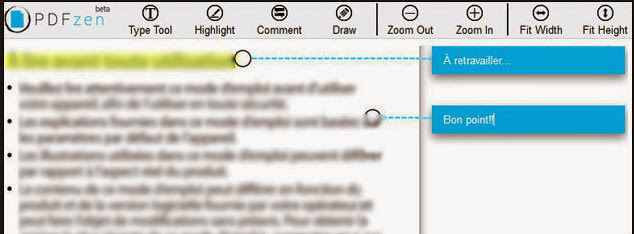
Pdfzen is a website which is very efficient, perfect and a quick process to edit the PDF files online. It has wide range of options to edit the PDF files. It reviews everything to edit and gives best results. PDFZEN is best in terms of creating a PDF file. This process is quick and gives best results.
pdfzen

4. Cutepdf editor: 

Cutepdf editor works similar to other PDF editors as I mentioned earlier. The attractive feature of this is it provides security to the PDF files you edit or create. It also provides wide range of editing options. It also has the option of Delete Pages, where as part of editing, you can delete any pages which you would not want in the PDF file.In the Cutepdf editor, you also has an option of merging multiple PDF files. The only draw back of this website is it takes time to save the documents.

5.FillAnyPDF: 

FillAnyPDF is a website where you fill it out, sign, and send forms, all online!
No software is needed. Any PDF (or MS Word) form can be used, even if it's not "interactive", so you can get started right away. You can also invite people or groups to fill out your forms and track the results without forcing them to download, print, scan or fax! Anyone that fills out forms or collects signatures and filled out forms from others will find FillAnyPDF.com to be a valuable time-saving resource.
fillanypdf
From the above five PDF editing websites available online, I would say pdfescape and PDFZEN are the most efficient and accurate websites, which help you out to save documents and create new PDFs with no efforts.

Thursday, 14 November 2013

Convert any word document or webpage to pdf

Convert any word document or webpage to pdf


Many times when we are randomly opening pages of some websites or going through different sites , we see some topics which seems really interesting. Often when we are looking for some particular topic , we reach to some other post which is interesting too but we have to continue to our search and leave that page half heartedly. Many of you might be aware of the default option provided by browsers for saving web pages to your computer and read them later while you are offline . You can do it by using option “ Save Webpage As…”

But these web pages saved by this method are not that good quality files. When reading , it seems that we are still looking at the website and not in our computer. So today I am going to tell you a trick to Convert Webpage to PDF and saving it to your computer simultaneously.

How to Convert any webpage to pdf


There are two very simple and automated methods to Convert Webpage to PDF format.

Method 1 : PdfMyURL.com

Pdfmyurl.com is a website that provides service of converting any webpage to pdf format and make it available to save on your system free of cost with the blink of your eye. It is very fast .
All you have to do is Simply open PdfmyURL website and paste the desired URL or website address which you want to convert to pdf and click on button placed at right side of text box. It will convert that URL into pdf format and ask for saving to your system.

Method 2 : Using Nova PDF

You can convert webpage to pdf from popular browsers like Internet Explorer, Firefox, Opera and Chrome by installing a Nova PDF creator that works as a virtual PDF printer. Once the printer is installed, you can simply print to it and a PDF file will be generated.
Just Download this software from their official site here : DOWNLOAD
Install it to your computer and then it will automatically add a new option to your browser’s print button i.e. Nova print server . Select it and click on print. It will save that url as pdf. You can also set margins of page using page setup before downloading the pdf to set the size of pdf file you want.
So this was all about saving a web page as pdf document now I would also like to tell you about How to convert word document to pdf file.

It is a simple task to convert any word file to pdf file. It can be done online or by some software. The best way to do it is using wordtopdf.com

This site will do your work in three simple steps. Browse your file , Enter your email address , click on convert it and within a few minutes the converted pdf file will reach to your inbox. There are many other sites as similar to wordtopdf.com so if this site doesn’t work for you , simply Google it.

Apps to Transfer Files between PC and Android wireless

Do you transfer files by connecting your mobile phone to PC with the help of USB, thus connecting and disconnecting USB gives you trouble, so turn into wireless, thus reducing your tension of wire. The benefit of wireless is that it is easy to connect and there is fast transfer of files. Here are the few wireless apps which have highest reviews in Google Play store and that will help you to Transfer Files between PC and Android wirelessly


Apps to Transfer Files between PC and Android wirelessly


1.Airdroid :

Airdroid is an top app to Transfer Files between PC and Android. It is available at that size of 6.4 MB and requires Android 2.1 or up. It has the highest rating for wireless data transfer. It is easy to use and even looks much pretty. The Key feature supported by this app is that— desktop SMS service, wireless transfer of files and media data, phone locating technique app management, camera and screenshots.


 2.ES File Manager :

Its size varies with devices. It is commonly known as an Android File Manager app but can also be used to transfer files wirelessly, select “Remote Manager” under the “Fast Access” list, you can find local network you are connecting to. Tap “Turn on”, find the given ftp address, then input the ftp address in the address bar of computer on your pc. As long as you get used to this app you will find it more than easy to use it.

 3. 3CX Droid Desktop :

It is available at the size of 2.8 MB and requires android 2.0 or up. It is not as easy to use. The first time you run this app, you are required to set service port and password for your connection. Tap “start server” an IP address is generated for your device, input The IP address and password on computer browser, there will be a page displayed which looks similar to desktop.
3CXDroid also supports USB mode, Desktop SMS, Gallery Viewer, Media Player, FTP Server, WiFi Keyboard, Webcam, Screen Capture, Contact Manager, Remote Call, Wallpaper Utils, APK Web Installer, Terminal Emulator, Logcat, etc.

 Conclusion :

With the help of such apps our work gets easier and better, and we don’t need the maximum use of USB or any other wiring, which make these apps unique and is greatly appreciated by the users. So what are you waiting for, don’t be in old fashion of wiring stuff just download the apps and enjoy life more easy.

How To Create Your Own Run Commands

There is no doubt that Microsoft Windows is the most widely used operating system in all parts of the world. Apart from being simple to use, it is quite rich in features as well, which makes our lives quite easy.
The Run command available on Windows operating system is one such power packed feature that lets you to open a document or an application instantly with the help of just 1 command. So, rather than clicking several icons or using multiple commands, you can use the Run command to open any program or document instantly.
crete your own run command
But, do you know how to create your own run commands? Well, it is really easy, which involves just few steps. Through this article, I will help you understand how to access your favorite applications by creating custom Run commands.
Open Run Command
Before I show you how to create your own Run commands, let’s take a quick look on how to open Run Command. First of all, you need to open the Run window by just pressing the Windows Key along with the R key, i.e. Windows + R. Now, you have to type the name of the program that you desire to open up or execute. Unfortunately, not all programs can be accessed through this method. So, let me show you how to create Run commands that do not come as inbuilt commands.

Steps to Create your own run commands


Step 1. The first step is to select the software or application for which you want to make custom Run command. For example, let us consider Google Chrome as the example here. Remember, you can choose any application other than which is already there in the Run command.

Step 2. In the second step, right click on the desktop of your computer system and make a new shortcut.
Right click > New > Shortcut

Step 3. As you select the Shortcut option in the 2nd Step, it will open up a dialog box. And, the dialog box will ask you path of the application or software for which you want to create the Run command.

Step 4. Now, you need to browse through the files and choose the one that shows “chrome.exe”. Well, it is quite obvious that all the executable files can be found in the C drive (or wherever the Operating System has been installed), inside the folder “Program Files”. For example, “C:\Program Files\Google Chrome\chrome.exe”

Step 5. Once you are done with Step number 4, just click on “Next” button and simply provide a relative name to that shortcut. Remember, the same name will be used later in the Run command.
For example, “GC” for Google Chrome

Step 6. Now, click on the “Finish” button. Once it is done, an icon related to that application or software will show up on your computer’s screen. It means that the process of creating shortcut has been done successfully.

Step 7. In this step, just cut and paste that recently made shortcut icon into your computer’s root drive, in its Windows folder.
For example, C:\ Windows , Make sure you are the administrator of the computer or have its password.

Step 8. Now, you are done with the set up and can run the application through Run Command. Just go to Run and enter the keyword “GC”, and Google Chrome will begin executing.